> ## Documentation Index
> Fetch the complete documentation index at: https://activitysmith.com/docs/llms.txt
> Use this file to discover all available pages before exploring further.
# API Keys
> Create and manage API keys
API Keys are secret tokens used to authenticate your requests. They are unique to your account and should be kept confidential.
## Create an API Key
To create an API key, go to the [API Keys](https://activitysmith.com/app/keys) page and click the **Create API Key** button.
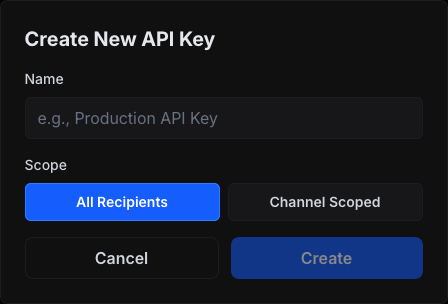
1. Click **Create API Key**.
2. Give your API Key a name (maximum 100 characters).
3. Select **All Recipients** or **Channel Scoped** as the Scope.
4. If you select **Channel Scoped**, you can choose the channels you want to restrict access to.
 For security reasons, you can only view the API Key once.
## API Key Scopes
There are two different API Key Scopes you can choose from:
* **All Recipients**: The API key can target all recipients in the account.
* **Channel Scoped**: The API key is restricted to channels assigned to that key.
For security reasons, you can only view the API Key once.
## API Key Scopes
There are two different API Key Scopes you can choose from:
* **All Recipients**: The API key can target all recipients in the account.
* **Channel Scoped**: The API key is restricted to channels assigned to that key.
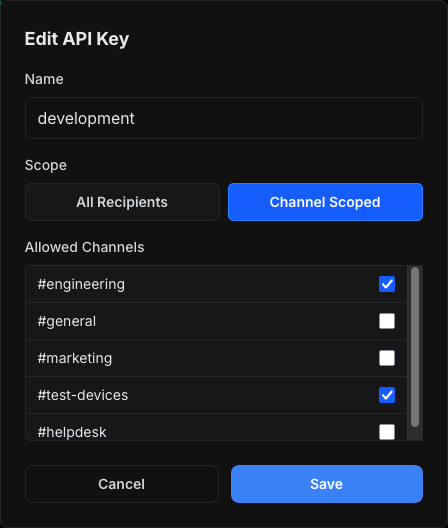 You can configure scope when creating or editing a key on the [API Keys](https://activitysmith.com/app/keys) page.
## Edit API Key details
After creating an API Key, you can edit the following details:
* Name
* Scope
* Scope Channels (only available if Scope is **Channel Scoped**)
To edit an API Key, click the **Edit API Key** button.
## View all API Keys
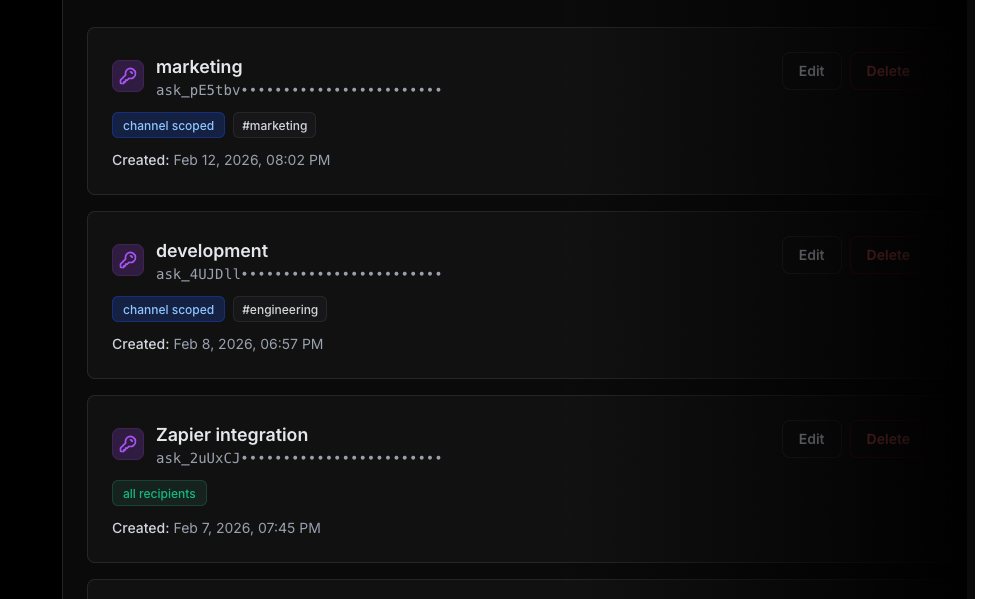
To manage your API keys, go to the [API Keys](https://activitysmith.com/app/keys) page. The page shows you all the API Keys you have created along with their details
You can configure scope when creating or editing a key on the [API Keys](https://activitysmith.com/app/keys) page.
## Edit API Key details
After creating an API Key, you can edit the following details:
* Name
* Scope
* Scope Channels (only available if Scope is **Channel Scoped**)
To edit an API Key, click the **Edit API Key** button.
## View all API Keys
To manage your API keys, go to the [API Keys](https://activitysmith.com/app/keys) page. The page shows you all the API Keys you have created along with their details
 ## Scope behavior with `target.channels`
* Scope `all` + no `target.channels`: sends to all recipients in your account.
* Scope `all` + `target.channels`: sends only to the provided channel slugs.
* Scope `channels` + no `target.channels`: sends to channels assigned to that API key.
* Scope `channels` + `target.channels`: requested channel slugs must be a subset of channels assigned to that API key.
Channels in request payloads use channel slugs, for example, `["marketing", "test-devices"]`.
## Scope enforcement and errors
If a channel-scoped key (`channels`) tries to target channel slugs outside its assignment, the request fails with `403 Forbidden` and a clear scope-violation error message.
Use the [channels guide](/docs/channels) for channel setup and targeting examples.
## Scope behavior with `target.channels`
* Scope `all` + no `target.channels`: sends to all recipients in your account.
* Scope `all` + `target.channels`: sends only to the provided channel slugs.
* Scope `channels` + no `target.channels`: sends to channels assigned to that API key.
* Scope `channels` + `target.channels`: requested channel slugs must be a subset of channels assigned to that API key.
Channels in request payloads use channel slugs, for example, `["marketing", "test-devices"]`.
## Scope enforcement and errors
If a channel-scoped key (`channels`) tries to target channel slugs outside its assignment, the request fails with `403 Forbidden` and a clear scope-violation error message.
Use the [channels guide](/docs/channels) for channel setup and targeting examples.