> ## Documentation Index
> Fetch the complete documentation index at: https://activitysmith.com/docs/llms.txt
> Use this file to discover all available pages before exploring further.
# CLI
> Use the ActivitySmith CLI to send push notifications, run specific iPhone Shortcuts from notification taps or actions, update widgets, and manage Live Activities from shell scripts, CI pipelines, coding agents, and terminal workflows.
## Installation
Install the ActivitySmith CLI globally with npm:
```bash CLI theme={null}
# Install globally with npm
npm install -g activitysmith-cli
```
## Agent Skill
Install the ActivitySmith skill when you want Codex, Claude, Cursor, or another skills-compatible agent to decide which ActivitySmith CLI command to run.
```bash CLI theme={null}
npx -y skills@latest add ActivitySmithHQ/activitysmith-cli --skill activitysmith
```
Use the skill when an agent should notify you with push notifications, include a notification tap or action that can open a URL or run a specific iPhone Shortcut, or keep task progress visible with Live Activities.
For example, a Codex agent can work on your computer, send a push notification when it needs your attention, and include a Shortcut action that runs an `OpenChatGPT` Shortcut on your iPhone so you can continue the conversation in the ChatGPT app.
## Usage
1. [Create an API key](https://activitysmith.com/app/keys)
2. Authenticate with `ACTIVITYSMITH_API_KEY` or pass `--api-key` per command.
3. Run `activitysmith --help` to inspect available commands.
Use the environment variable when you want the cleanest shell scripts:
```bash CLI theme={null}
export ACTIVITYSMITH_API_KEY="YOUR-API-KEY"
activitysmith --help
```
Or pass the key directly:
```bash CLI theme={null}
activitysmith --api-key "YOUR-API-KEY" push --title "Hello"
```
## Commands
### Push Notification
Use `activitysmith push` when a deploy fails, a CI run finishes, or a background job needs attention.
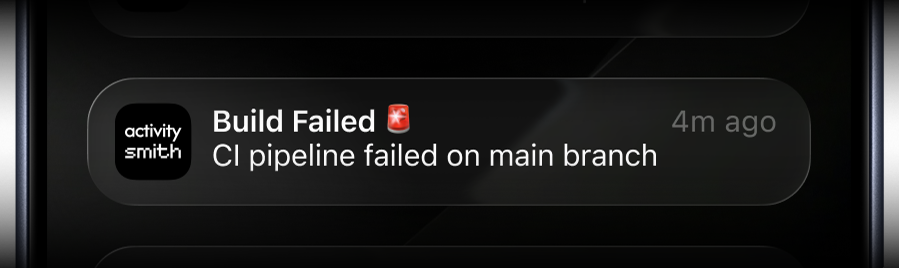 ```bash CLI theme={null}
activitysmith push \
--title "Build Failed 🚨" \
--message "CI pipeline failed on main branch" \
--subtitle "main"
```
### Rich Push Notifications with Media
```bash CLI theme={null}
activitysmith push \
--title "Build Failed 🚨" \
--message "CI pipeline failed on main branch" \
--subtitle "main"
```
### Rich Push Notifications with Media
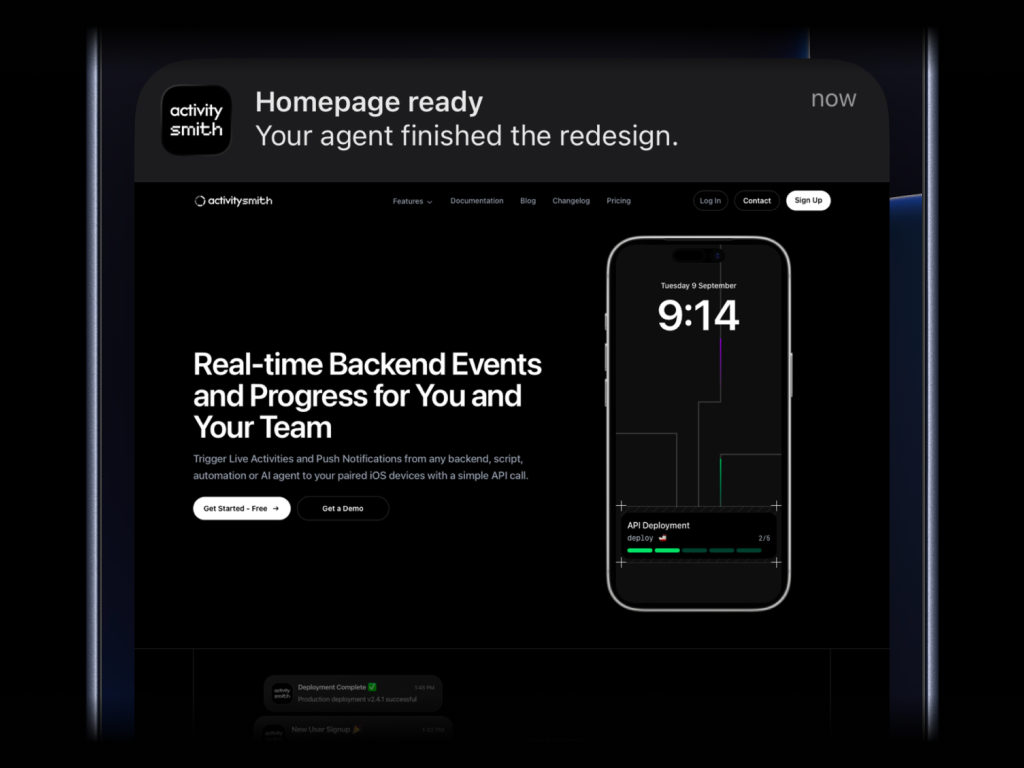 ```bash CLI theme={null}
activitysmith push \
--title "Homepage ready" \
--message "Your agent finished the redesign." \
--media "https://cdn.example.com/output/homepage-v2.png" \
--redirection "https://github.com/acme/web/pull/482"
```
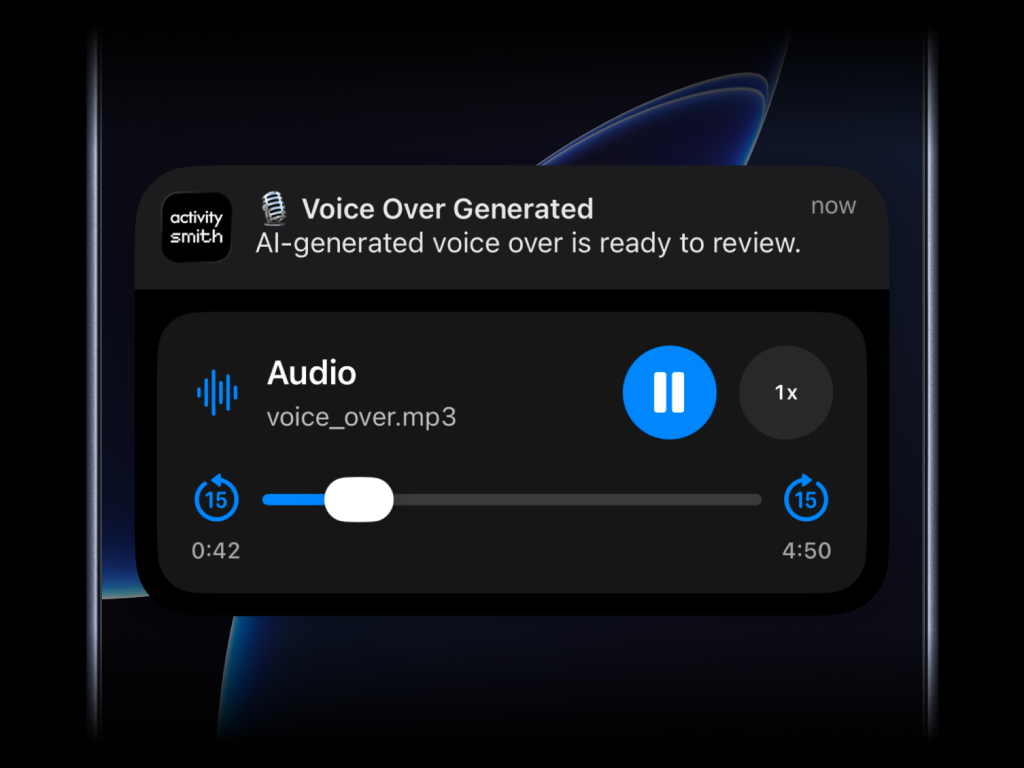
Send images, videos, or audio with your push notifications, press and hold to preview media directly from the notification, then tap through to open the linked content.
```bash CLI theme={null}
activitysmith push \
--title "Homepage ready" \
--message "Your agent finished the redesign." \
--media "https://cdn.example.com/output/homepage-v2.png" \
--redirection "https://github.com/acme/web/pull/482"
```
Send images, videos, or audio with your push notifications, press and hold to preview media directly from the notification, then tap through to open the linked content.
 What will work:
* direct image URL: `.jpg`, `.png`, `.gif`, etc.
* direct audio file URL: `.mp3`, `.m4a`, etc.
* direct video file URL: `.mp4`, `.mov`, etc.
* URL that responds with a proper media `Content-Type`, even if the path has no extension
`--media` can be combined with `--redirection`, but not with `--actions`. `--redirection` can be an HTTP or HTTPS URL or a `shortcuts://run-shortcut?name=...` URL.
### Actionable Push Notifications
What will work:
* direct image URL: `.jpg`, `.png`, `.gif`, etc.
* direct audio file URL: `.mp3`, `.m4a`, etc.
* direct video file URL: `.mp4`, `.mov`, etc.
* URL that responds with a proper media `Content-Type`, even if the path has no extension
`--media` can be combined with `--redirection`, but not with `--actions`. `--redirection` can be an HTTP or HTTPS URL or a `shortcuts://run-shortcut?name=...` URL.
### Actionable Push Notifications
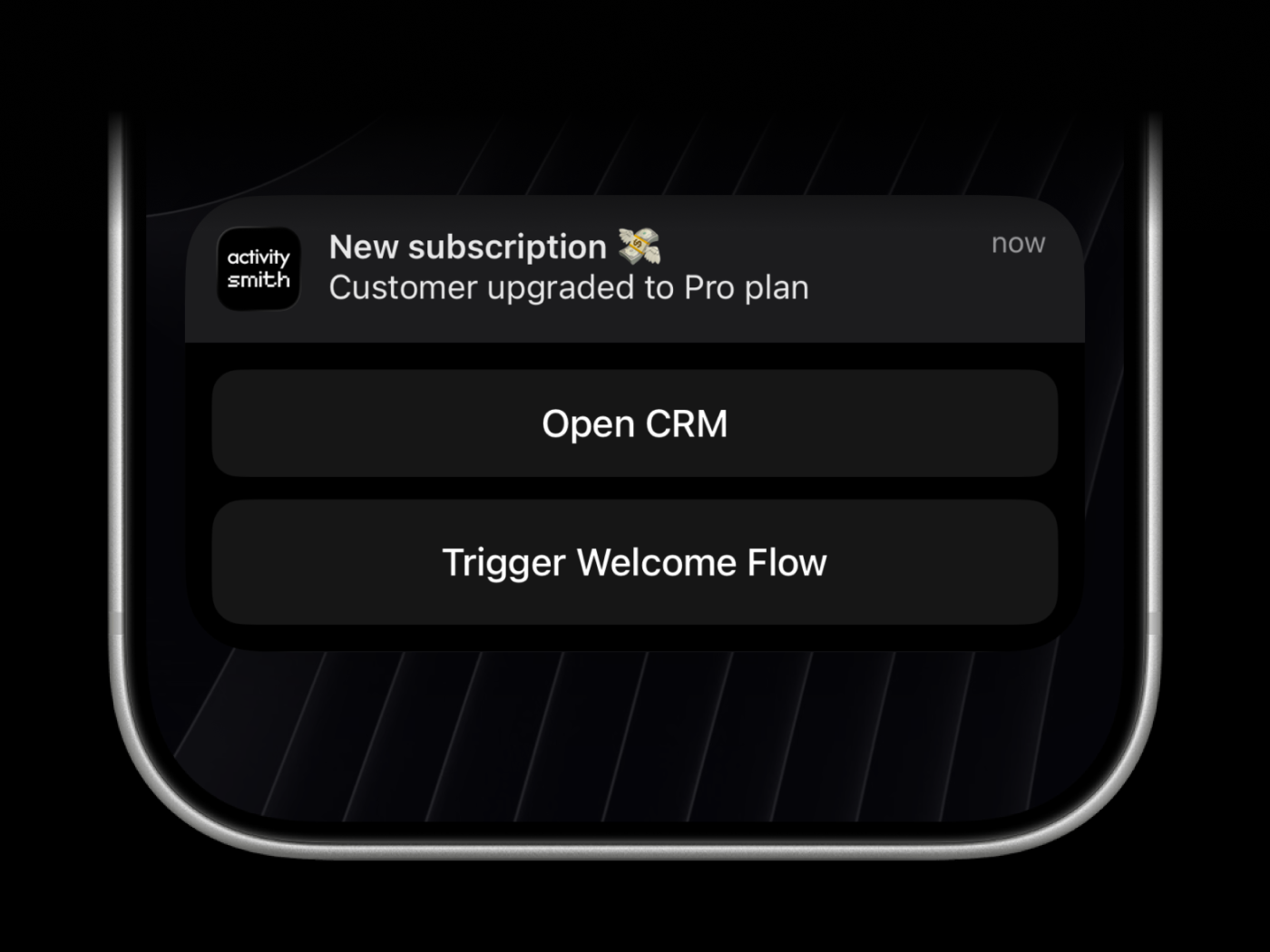 Push notification redirection can open an HTTP or HTTPS URL or run a specific iPhone Shortcut with a `shortcuts://run-shortcut?name=...` URL when someone taps the notification. For expanded notification actions, `open_url` supports HTTP or HTTPS URLs and `shortcuts://run-shortcut?name=...` URLs. Webhooks are executed by the ActivitySmith backend and must use HTTPS.
```bash CLI theme={null}
activitysmith push \
--title "Build Failed 🚨" \
--message "CI pipeline failed on main branch" \
--redirection "https://github.com/org/repo/actions/runs/123456789" \
--actions '[
{
"title": "Open Build",
"type": "open_url",
"url": "https://github.com/org/repo/actions/runs/123456789"
},
{
"title": "Chat with Jarvis",
"type": "open_url",
"url": "shortcuts://run-shortcut?name=Jarvis"
},
{
"title": "Create Incident",
"type": "webhook",
"url": "https://hooks.example.com/incidents/create",
"method": "POST",
"body": {
"service": "payments-api",
"severity": "high",
"source": "activitysmith-cli"
}
}
]'
```
You can also load actions from a file:
```bash CLI theme={null}
activitysmith push \
--title "Build Failed 🚨" \
--message "CI pipeline failed on main branch" \
--actions-file "./actions.json"
```
## Live Activities
There are six types of Live Activities:
* `stats`: best for showing business numbers side by side, such as revenue, sales, new users, conversion, refunds, or any other value you want visible at a glance
* `metrics`: best for live percentage values that change often, like server CPU, memory usage, disk usage, or error rate
* `segmented_progress`: best for anything that moves through clear stages, like deployments, onboarding flows, backups, ETL pipelines, migrations, and AI agent runs
* `progress`: best for tracking real-time progress with percentage, like tasks, backups, migrations, syncs, or uploads
* `alert`: best for status updates, such as feature adoption, reactivation, onboarding blockers, incidents, escalations, and other operational states
* `timer`: use it when you need countdowns or timers
### Start & Update Live Activity
Use a stable `stream_key` to identify the metric, job, deployment, or system you want to keep visible. The first `activity stream` command starts the Live Activity. Later commands with the same `stream_key` update it.
#### Stats
Push notification redirection can open an HTTP or HTTPS URL or run a specific iPhone Shortcut with a `shortcuts://run-shortcut?name=...` URL when someone taps the notification. For expanded notification actions, `open_url` supports HTTP or HTTPS URLs and `shortcuts://run-shortcut?name=...` URLs. Webhooks are executed by the ActivitySmith backend and must use HTTPS.
```bash CLI theme={null}
activitysmith push \
--title "Build Failed 🚨" \
--message "CI pipeline failed on main branch" \
--redirection "https://github.com/org/repo/actions/runs/123456789" \
--actions '[
{
"title": "Open Build",
"type": "open_url",
"url": "https://github.com/org/repo/actions/runs/123456789"
},
{
"title": "Chat with Jarvis",
"type": "open_url",
"url": "shortcuts://run-shortcut?name=Jarvis"
},
{
"title": "Create Incident",
"type": "webhook",
"url": "https://hooks.example.com/incidents/create",
"method": "POST",
"body": {
"service": "payments-api",
"severity": "high",
"source": "activitysmith-cli"
}
}
]'
```
You can also load actions from a file:
```bash CLI theme={null}
activitysmith push \
--title "Build Failed 🚨" \
--message "CI pipeline failed on main branch" \
--actions-file "./actions.json"
```
## Live Activities
There are six types of Live Activities:
* `stats`: best for showing business numbers side by side, such as revenue, sales, new users, conversion, refunds, or any other value you want visible at a glance
* `metrics`: best for live percentage values that change often, like server CPU, memory usage, disk usage, or error rate
* `segmented_progress`: best for anything that moves through clear stages, like deployments, onboarding flows, backups, ETL pipelines, migrations, and AI agent runs
* `progress`: best for tracking real-time progress with percentage, like tasks, backups, migrations, syncs, or uploads
* `alert`: best for status updates, such as feature adoption, reactivation, onboarding blockers, incidents, escalations, and other operational states
* `timer`: use it when you need countdowns or timers
### Start & Update Live Activity
Use a stable `stream_key` to identify the metric, job, deployment, or system you want to keep visible. The first `activity stream` command starts the Live Activity. Later commands with the same `stream_key` update it.
#### Stats
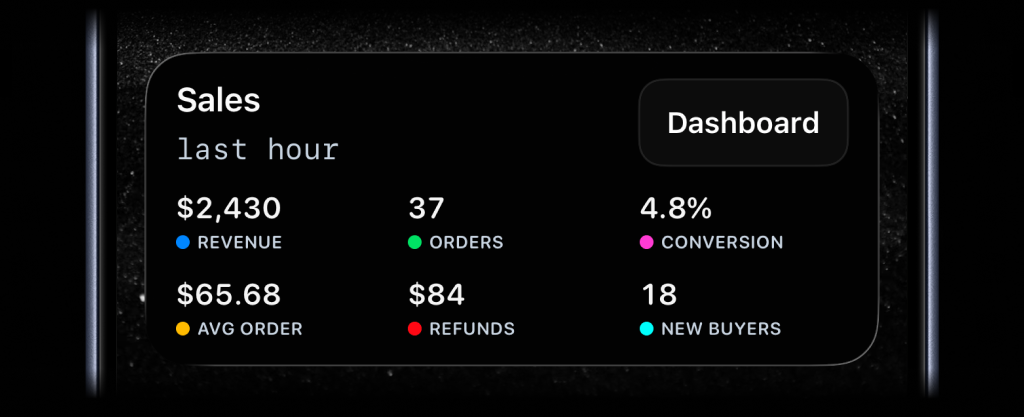
```bash CLI theme={null}
activitysmith activity stream sales-hourly \
--content-state '{
"title": "Sales",
"subtitle": "last hour",
"type": "stats",
"metrics": [
{ "label": "Revenue", "value": "$2430", "color": "blue" },
{ "label": "Orders", "value": "37", "color": "green" },
{ "label": "Conversion", "value": "4.8%", "color": "magenta" },
{ "label": "Avg Order", "value": "$65.68", "color": "yellow" },
{ "label": "Refunds", "value": "$84", "color": "red" },
{ "label": "New Buyers", "value": "18", "color": "cyan" }
]
}'
```
#### Metrics
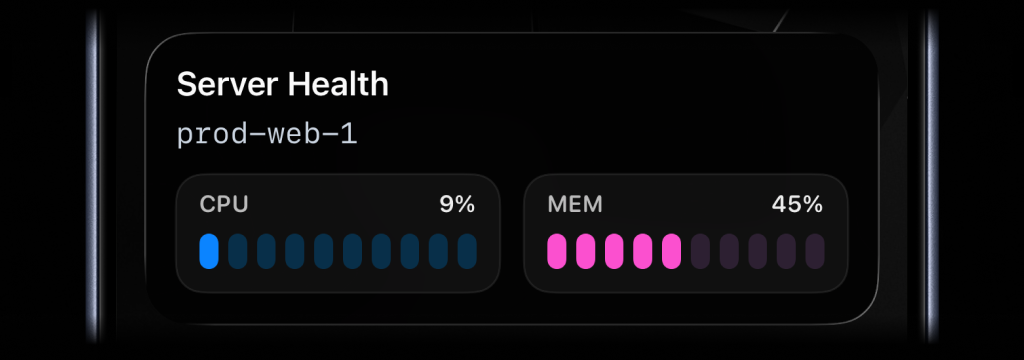
```bash CLI theme={null}
activitysmith activity stream prod-web-1 \
--content-state '{
"title": "Server Health",
"subtitle": "prod-web-1",
"type": "metrics",
"metrics": [
{ "label": "CPU", "value": 9, "unit": "%" },
{ "label": "MEM", "value": 45, "unit": "%" }
]
}'
```
#### Segmented Progress
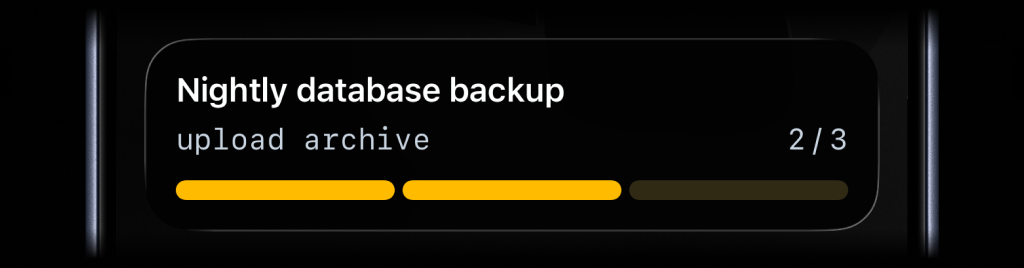
```bash CLI theme={null}
activitysmith activity stream nightly-backup \
--content-state '{
"title": "Nightly Backup",
"subtitle": "upload archive",
"type": "segmented_progress",
"numberOfSteps": 3,
"currentStep": 2
}'
```
#### Progress
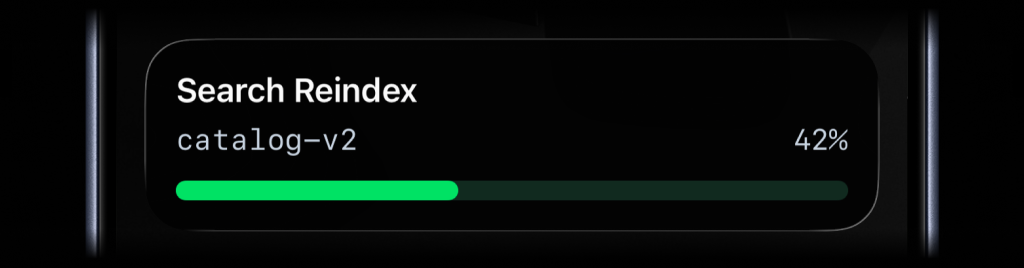
```bash CLI theme={null}
activitysmith activity stream search-reindex \
--content-state '{
"title": "Search Reindex",
"subtitle": "catalog-v2",
"type": "progress",
"percentage": 42
}'
```
#### Alert
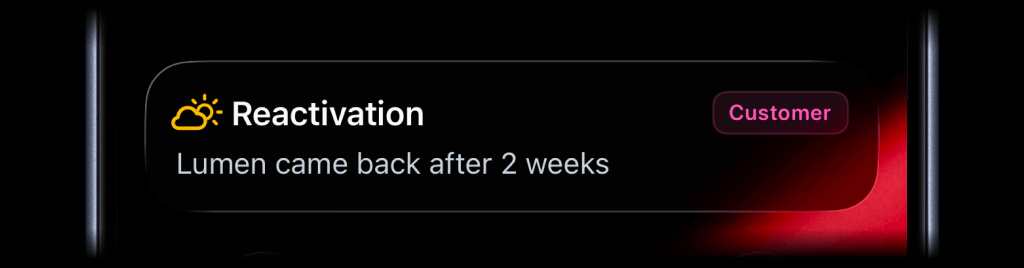
```bash CLI theme={null}
activitysmith activity stream customer-ops \
--content-state '{
"title": "Reactivation",
"message": "Lumen came back after 2 weeks",
"type": "alert",
"icon": {
"symbol": "cloud.sun",
"color": "yellow"
},
"badge": {
"title": "Customer",
"color": "magenta"
}
}'
```
#### Timer
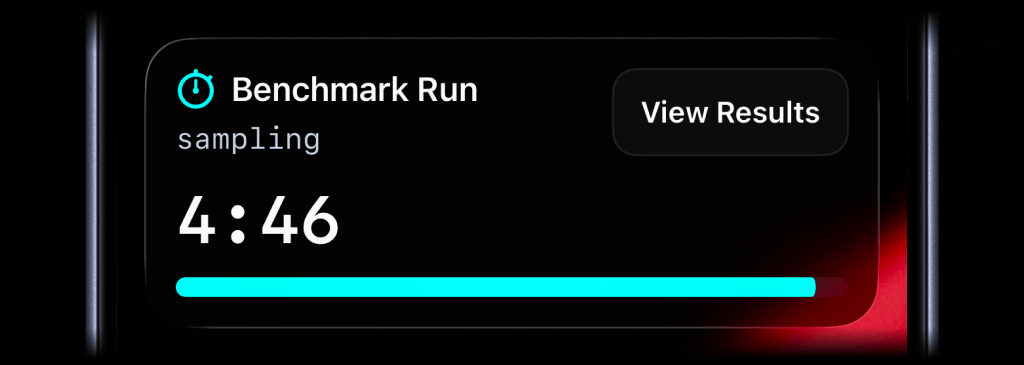
```bash CLI theme={null}
activitysmith activity stream benchmark-run \
--content-state '{
"title": "Benchmark Run",
"subtitle": "sampling",
"type": "timer",
"duration_seconds": 300,
"color": "cyan"
}'
```
For a countdown, send `duration_seconds`. You can update `title`, `subtitle`, `color`, or any other visible field as the work changes. Leave `duration_seconds` out unless you want to change the timer.
To start at 00:00 and count up, set `counts_down` to `false` and leave out `duration_seconds`.
### End Live Activity
Call `activity end-stream` with the same `stream_key` to dismiss the Live Activity. You can include final values before it is removed. By default, iOS removes the Live Activity after two minutes. Set `autoDismissMinutes` to choose a different dismissal time, including `0` for immediate dismissal.
```bash CLI theme={null}
activitysmith activity end-stream prod-web-1 \
--content-state '{
"title": "Server Health",
"subtitle": "prod-web-1",
"type": "metrics",
"metrics": [
{ "label": "CPU", "value": 7, "unit": "%" },
{ "label": "MEM", "value": 38, "unit": "%" }
],
"autoDismissMinutes": 2
}'
```
### Icons and Badges
Add more context to Live Activities with icons and badges.
#### Icon
Supported Live Activity types: `stats`, `metrics`, `progress`, `segmented_progress`, `alert`, and `timer`.
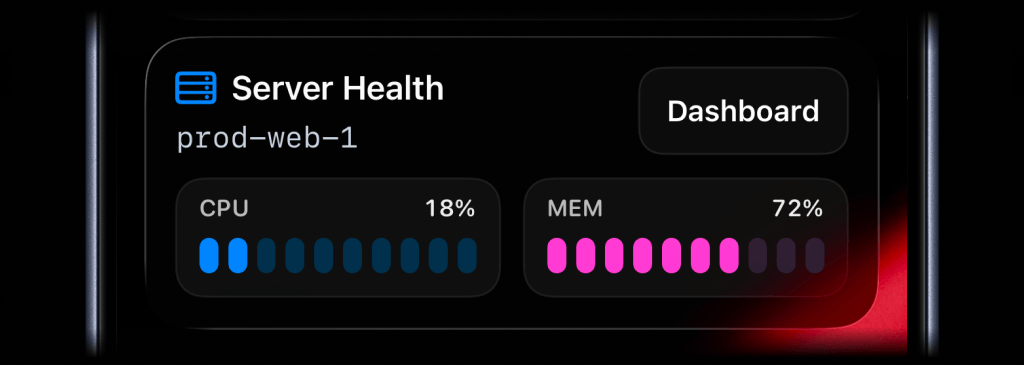
```bash theme={null}
activitysmith activity stream prod-web-1 \
--content-state '{
"title": "Server Health",
"subtitle": "prod-web-1",
"type": "metrics",
"icon": { "symbol": "server.rack", "color": "blue" },
"metrics": [
{ "label": "CPU", "value": 18, "unit": "%" },
{ "label": "MEM", "value": 42, "unit": "%" }
]
}'
```
The `icon.symbol` value is an Apple SF Symbol name. Browse the catalog with one of these tools:
* [ActivitySmith app](https://apps.apple.com/us/app/activitysmith/id6752254835) - Open Settings -> SF Symbols to browse 45 hand-picked icons ready to use
* [SF Symbols](https://developer.apple.com/sf-symbols/) - Apple's official macOS app
* [Interactful](https://apps.apple.com/app/interactful/id1528095640) - free third-party iOS app listing all SF Symbols under Foundations -> Iconography
#### Badge
Badges are supported by `alert`, `progress`, and `segmented_progress` Live Activities.
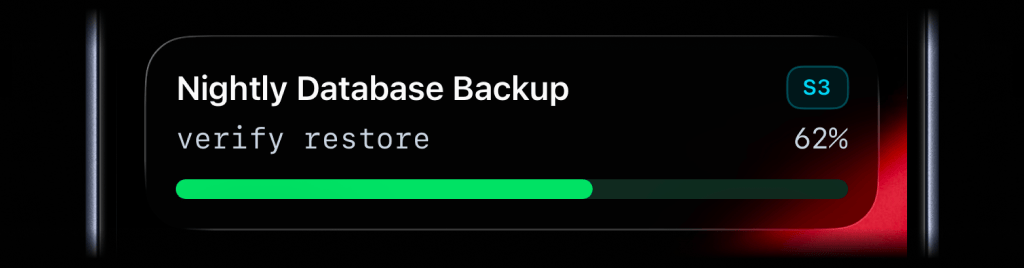
```bash theme={null}
activitysmith activity stream nightly-database-backup \
--content-state '{
"title": "Nightly Database Backup",
"subtitle": "verify restore",
"type": "progress",
"badge": { "title": "S3", "color": "cyan" },
"percentage": 62
}'
```
### Live Activity Colors
Choose from these colors for the Live Activity accent, including progress bars and action buttons, or apply them to an individual icon or badge:
`lime`, `green`, `cyan`, `blue`, `purple`, `magenta`, `red`, `orange`, `yellow`, `gray`
### Live Activity Action
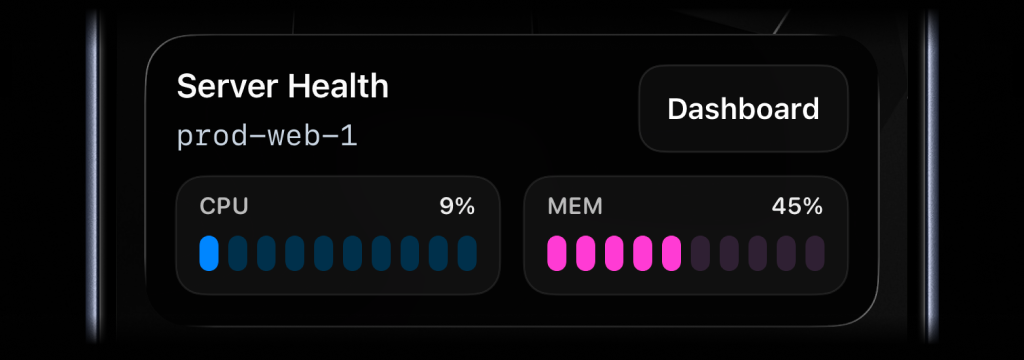
Live Activities can include an action button.
* `open_url`: open an HTTP or HTTPS URL.
* `open_url` with a `shortcuts://run-shortcut?name=...` URL: run a specific iPhone Shortcut, for example to open an app.
* `webhook`: trigger a backend GET/POST workflow.
#### Open URL action
```bash CLI theme={null}
activitysmith activity stream prod-web-1 \
--content-state '{
"title": "Server Health",
"subtitle": "prod-web-1",
"type": "metrics",
"metrics": [
{ "label": "CPU", "value": 76, "unit": "%" },
{ "label": "MEM", "value": 52, "unit": "%" }
]
}' \
--action '{
"title": "Dashboard",
"type": "open_url",
"url": "https://status.example.com/servers/prod-web-1"
}'
```
#### Apple Shortcut action
```bash CLI theme={null}
activitysmith activity stream prod-web-1 \
--content-state '{
"title": "Server Health",
"subtitle": "prod-web-1",
"type": "metrics",
"metrics": [
{ "label": "CPU", "value": 76, "unit": "%" },
{ "label": "MEM", "value": 52, "unit": "%" }
]
}' \
--action '{
"title": "Chat with Jarvis",
"type": "open_url",
"url": "shortcuts://run-shortcut?name=Jarvis"
}'
```
#### Webhook action
```bash CLI theme={null}
activitysmith activity stream search-reindex \
--content-state '{
"title": "Reindexing product search",
"subtitle": "Shard 7 of 12",
"type": "segmented_progress",
"numberOfSteps": 12,
"currentStep": 7
}' \
--action '{
"title": "Pause Reindex",
"type": "webhook",
"url": "https://ops.example.com/hooks/search/reindex/pause",
"method": "POST",
"body": {
"job_id": "reindex-2026-03-19",
"requested_by": "activitysmith-cli"
}
}'
```
#### Secondary action
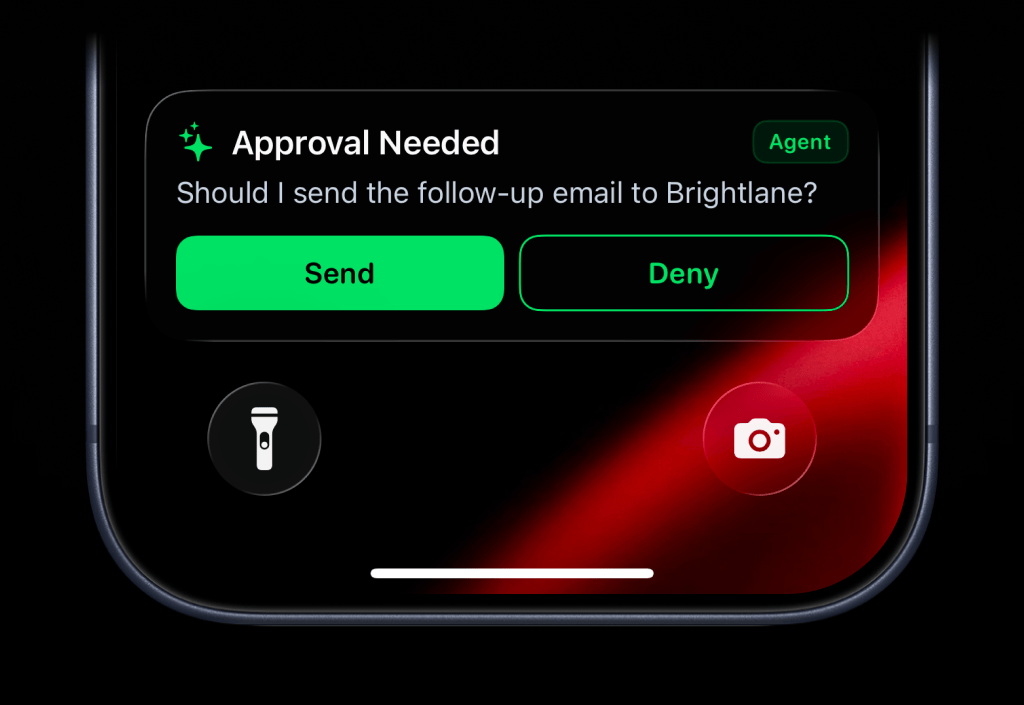
Use `--secondary-action` when you want a second button beside the primary `--action`.
The secondary action button is supported for `alert`, `progress`, and `segmented_progress` Live Activities. Both buttons use the same `open_url`, `webhook`, and Apple Shortcut payload shapes.
```bash CLI theme={null}
activitysmith activity stream agent-approval \
--content-state '{
"title": "Approval Needed",
"message": "Should I send the follow-up email to Brightlane?",
"type": "alert",
"color": "green",
"icon": { "symbol": "sparkles", "color": "green" },
"badge": { "title": "Agent", "color": "green" }
}' \
--action '{
"title": "Send",
"type": "webhook",
"url": "https://agent.example.com/live-activity/approve",
"method": "POST",
"body": {
"approval_id": "approval_01JY3J7Q9S0P8M1V5PZK7DR4M2",
"decision": "send"
}
}' \
--secondary-action '{
"title": "Deny",
"type": "webhook",
"url": "https://agent.example.com/live-activity/deny",
"method": "POST",
"body": {
"approval_id": "approval_01JY3J7Q9S0P8M1V5PZK7DR4M2",
"decision": "deny"
}
}'
```
## Widgets
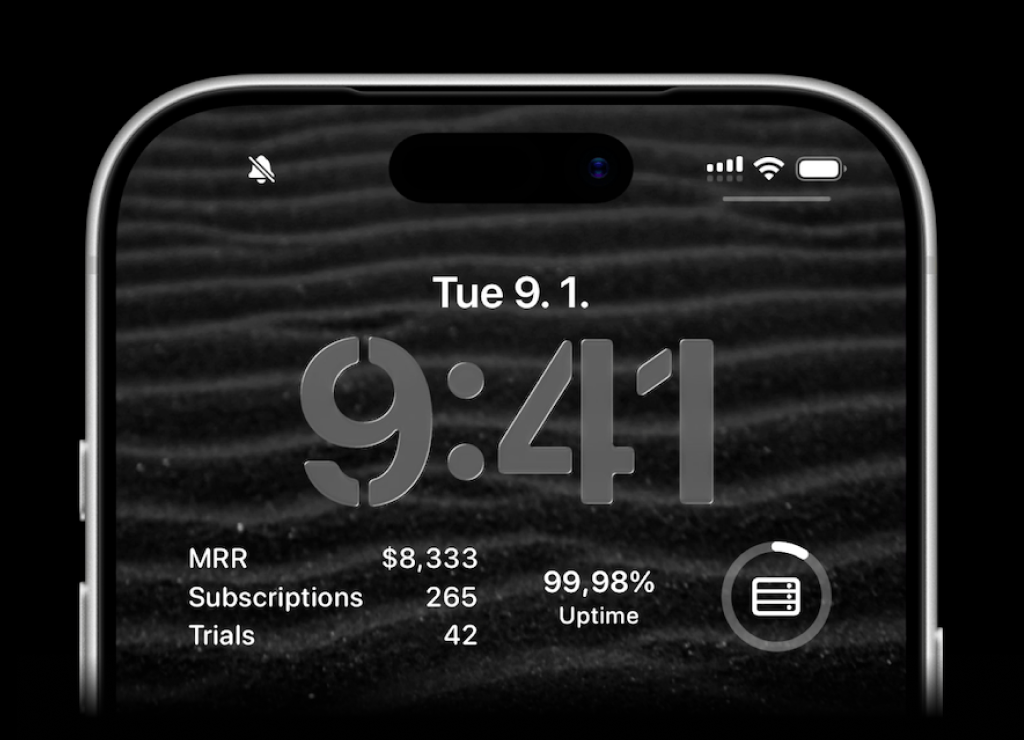
ActivitySmith lets you display any value on your Lock Screen with widgets - SaaS metrics, revenue, signups, uptime, habits, or anything else you want to track. Create a metric in the web app, then update the metric value using our API, add a widget to your lock screen and it will fetch the latest update automatically.
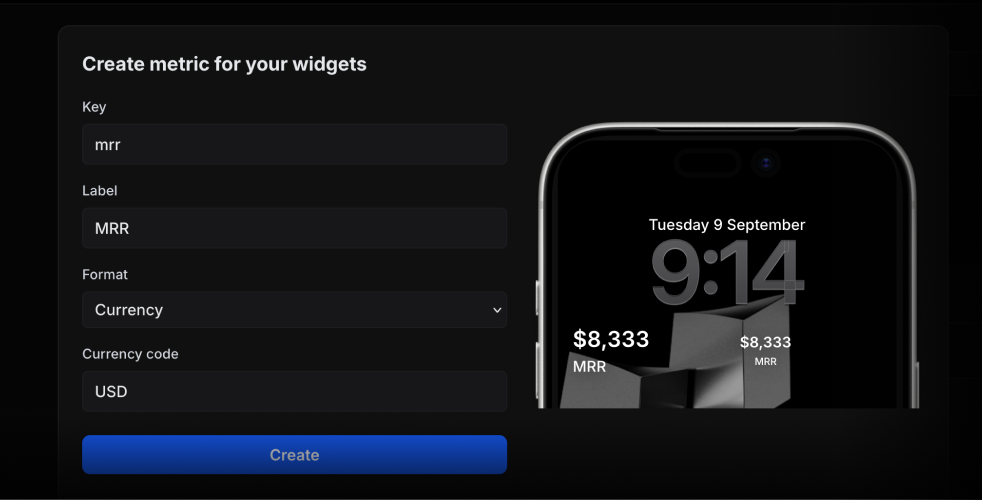
Use the metric key to update its value.
```bash theme={null}
activitysmith metrics update deploy.success_rate 99.9
```
String metric values work too.
```bash theme={null}
activitysmith metrics update prod.status healthy
```
## App Icon Badge Count
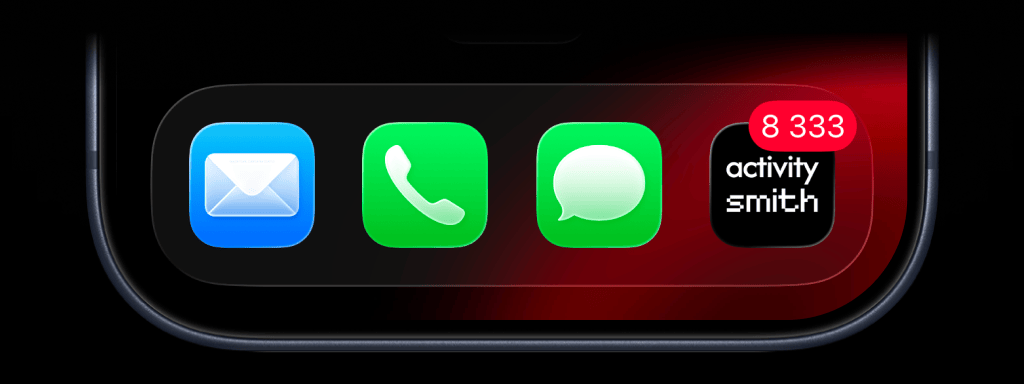
Show the number you care about on your ActivitySmith app icon. Track MRR, a customer count, a stock price, or any other value you want to keep in view.
### Set or update the badge value
```bash CLI theme={null}
activitysmith badge 8333
```
### Clear the badge
Pass `0` to clear the badge.
```bash CLI theme={null}
activitysmith badge 0
```
## Channels
Target specific team members or devices when sending a push notification, live activity or app icon badge count update.
```bash CLI theme={null}
activitysmith push \
--title "Build Failed 🚨" \
--message "CI pipeline failed on main branch" \
--channels "devs,ops"
```
```bash CLI theme={null}
activitysmith activity stream nightly-backup \
--content-state '{
"title": "Nightly database backup",
"type": "segmented_progress",
"numberOfSteps": 4,
"currentStep": 1
}' \
--channels "devs,ops"
```
```bash CLI theme={null}
activitysmith badge 3 --channels "sales,customer-success"
```
## Tags
Use `tags` to organize and filter your Push Notification and Live Activity history. Tags are created automatically when you first use them.
```bash CLI theme={null}
activitysmith push \
--title "New subscription 💸" \
--message "Customer upgraded to Pro plan" \
--tags "user:382,billing"
```
## Output
Use `--json` for machine-readable output:
```bash CLI theme={null}
activitysmith push --title "Hello" --json
```
## Error Handling
The CLI exits non-zero on non-2xx responses and prints the API error body. That includes validation failures, rate limits, and Live Activity limit errors.
## Additional Resources
Install the ActivitySmith CLI from npm
View the CLI source on GitHub