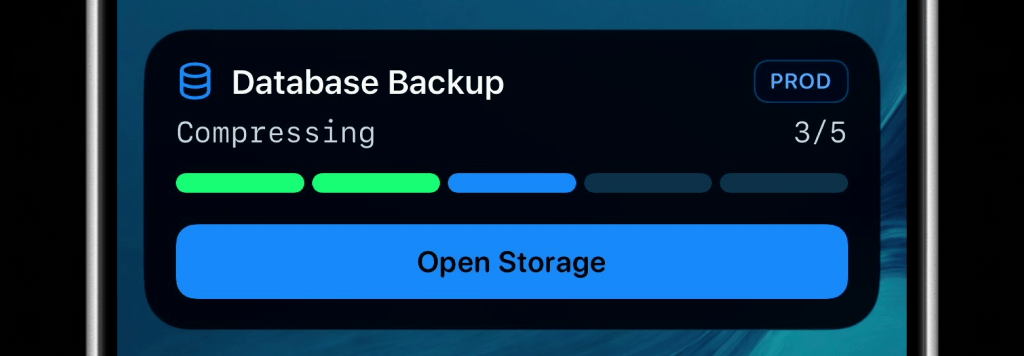
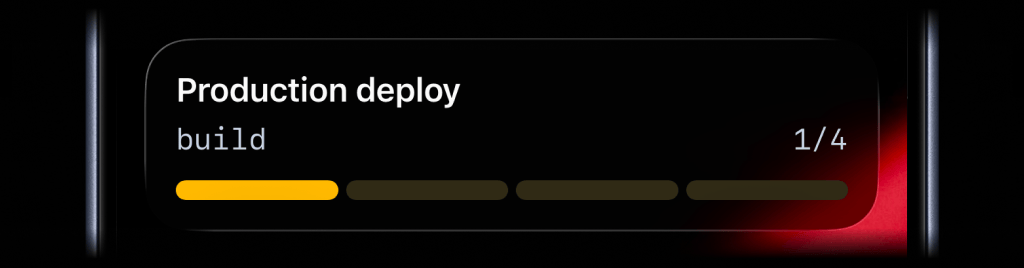
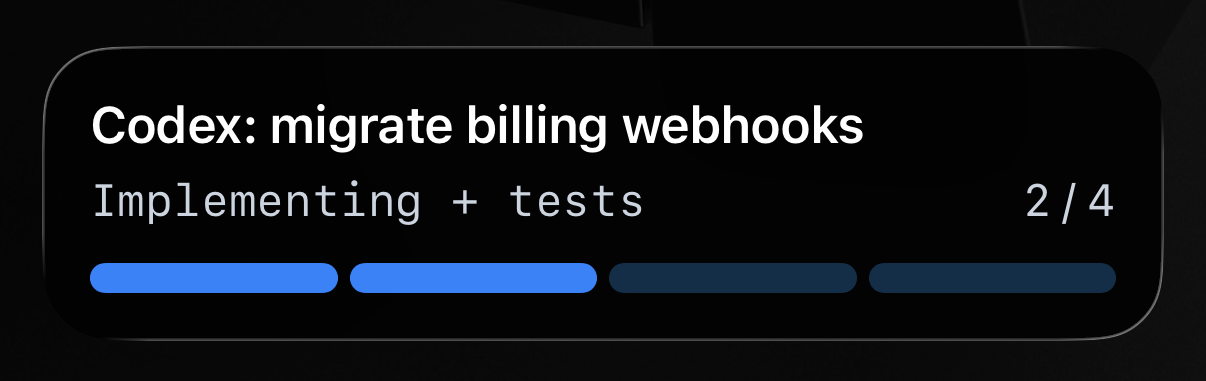
Scheduled jobs often run in the background for minutes or hours: database backups, imports, customer syncs, report generation, cleanup tasks, and nightly maintenance.
When the only status lives in logs, it is easy to miss whether the job is still running, stuck in one stage, already finished, or failed before handoff.
ActivitySmith keeps the current job visible as a Live Activity and can send a Push Notification when the final result is known.
Before you start
ActivitySmith account
Create an account so you can generate an API key for this workflow.
API key in your runtime
Store your ActivitySmith API key as ACTIVITYSMITH_API_KEY in the service, worker, or environment that sends the event.
At least one paired iOS device
Pair an iPhone or iPad with ActivitySmith so the update has somewhere to appear.
Add progress to a scheduled job
Live Activity progress
Use a Live Activity when the job has phases worth watching while it runs, such as extract, transform, verify, publish, or cleanup.
Step 1
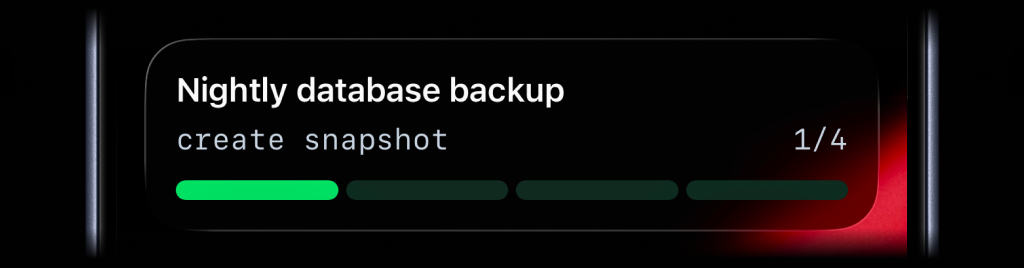
Start progress when the job begins
Create a Live Activity for the scheduled run so the progress belongs to that job timeline.
Step 2
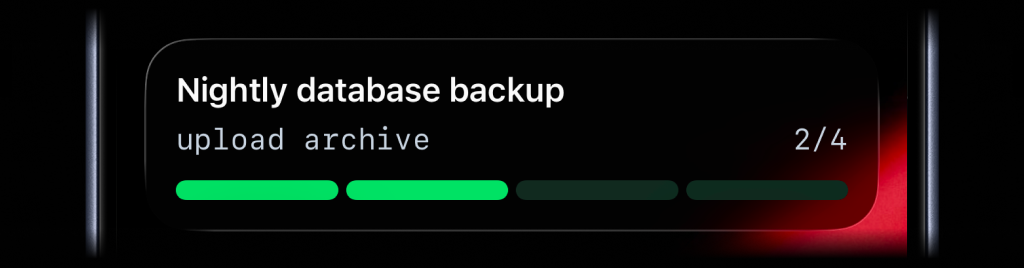
Update after each real milestone
Update the subtitle and current step only when the job reaches meaningful states.
Step 3
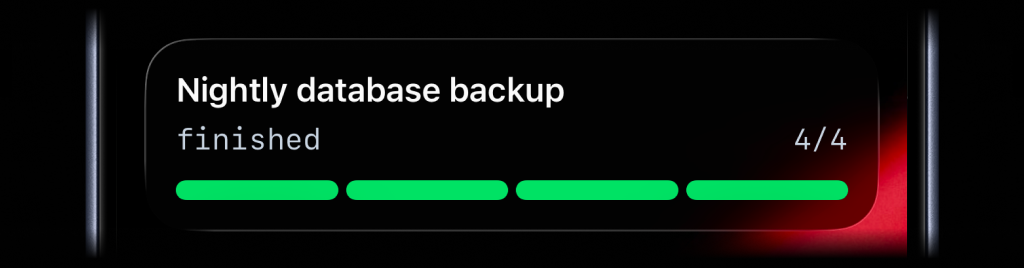
End progress when the job is done
End the Live Activity on success or failure so old job status does not linger.
Completion Push Notification
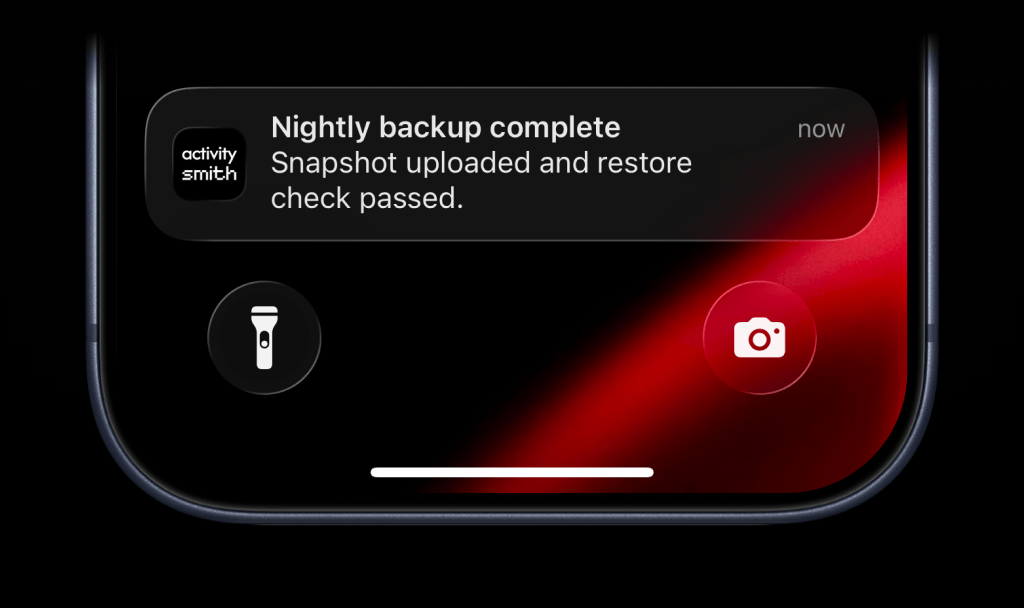
Send a Push Notification when the job finishes, fails, or needs a retry so the final result is not buried in scheduler logs.
Team visibility
Invite teammates so operations, DevOps, or the people responsible for the job can pair their own devices and see scheduled run status.
Use channels to target specific people or devices, such as operations, devops, or data.
Reference implementation
Schedule the job with cron
Cron can run the same script that already performs the job. Load the environment first so the script can read the ActivitySmith API key, database URL, and storage credentials.
# /etc/cron.d/nightly-backupSHELL=/bin/bashPATH=/usr/local/bin:/usr/bin:/bin0 2 * * * deploy . /etc/nightly-backup.env; cd /srv/app && ./scripts/nightly-backup.sh >> /var/log/nightly-backup.log 2>&1Track a nightly backup from Bash
Wrap the real backup commands with ActivitySmith calls. Start progress before the expensive work, update after each milestone, end the Live Activity, and send a Push Notification for the final result.
#!/usr/bin/env bashset -euo pipefailACTIVITY_ID=""CURRENT_STEP=1BACKUP_FILE="/tmp/nightly-backup-$(date +%F).dump"api_post() { local path="$1" local payload="$2" curl -fsS -X POST "https://activitysmith.com/api/$path" \ -H "Authorization: Bearer $YOUR_API_KEY" \ -H "Content-Type: application/json" \ -d "$payload"}start_activity() { ACTIVITY_ID=$(api_post "live-activity/start" "$(jq -n '{ channels: ["operations"], content_state: { title: "Nightly database backup", subtitle: "create snapshot", type: "segmented_progress", number_of_steps: 4, current_step: 1, color: "green" } }')" | jq -r '.activity_id') if [[ -z "$ACTIVITY_ID" || "$ACTIVITY_ID" == "null" ]]; then echo "ActivitySmith did not return an activity_id" >&2 exit 1 fi}update_activity() { local subtitle="$1" local step="$2" [[ -z "$ACTIVITY_ID" ]] && return CURRENT_STEP="$step" api_post "live-activity/update" "$(jq -n \ --arg activity_id "$ACTIVITY_ID" \ --arg subtitle "$subtitle" \ --argjson step "$step" \ '{ activity_id: $activity_id, content_state: { title: "Nightly database backup", subtitle: $subtitle, current_step: $step } }')" >/dev/null}end_activity() { local subtitle="$1" local step="$2" [[ -z "$ACTIVITY_ID" ]] && return api_post "live-activity/end" "$(jq -n \ --arg activity_id "$ACTIVITY_ID" \ --arg subtitle "$subtitle" \ --argjson step "$step" \ '{ activity_id: $activity_id, content_state: { title: "Nightly database backup", subtitle: $subtitle, current_step: $step, auto_dismiss_minutes: 2 } }')" >/dev/null}send_push() { local title="$1" local message="$2" api_post "push-notification" "$(jq -n \ --arg title "$title" \ --arg message "$message" \ '{ title: $title, message: $message, channels: ["operations"] }')" >/dev/null}on_error() { local exit_code=$? end_activity "failed" "$CURRENT_STEP" || true send_push "Nightly backup failed" "Check /var/log/nightly-backup.log for details." || true exit "$exit_code"}trap on_error ERRstart_activitypg_dump --format=custom --file "$BACKUP_FILE" "$DATABASE_URL"update_activity "upload archive" 2aws s3 cp "$BACKUP_FILE" "s3://acme-backups/postgres/$(basename "$BACKUP_FILE")"update_activity "verify restore" 3pg_restore --list "$BACKUP_FILE" >/dev/nullend_activity "finished" 4send_push "Nightly backup complete" "Snapshot uploaded and restore check passed."trap - ERRScheduled jobs without log watching
- Long-running jobs stay visible while they run, not only after they fail.
- Completion and failure become clear without opening scheduler dashboards.
- Morning handoff starts with a known job state instead of a log hunt.
Track the next scheduled run
Start with one cron job that already takes a few minutes. Show its current stage on the Lock Screen and send the final result when it finishes.