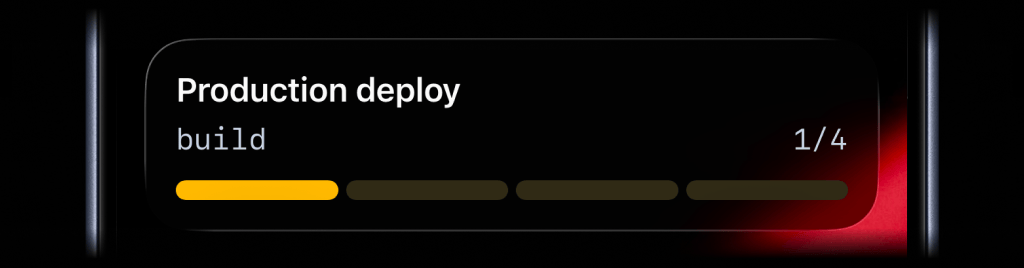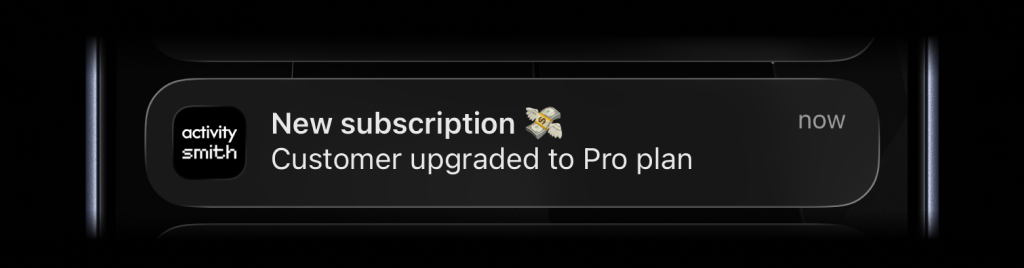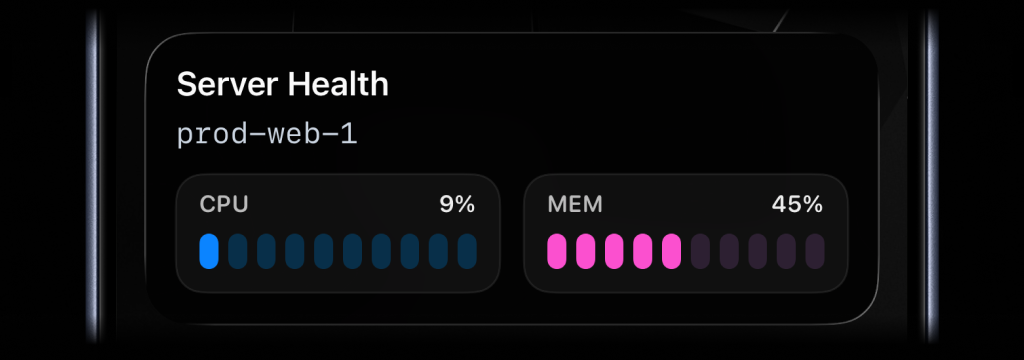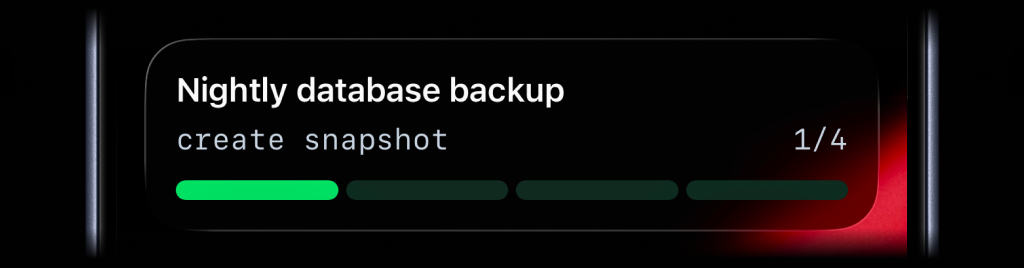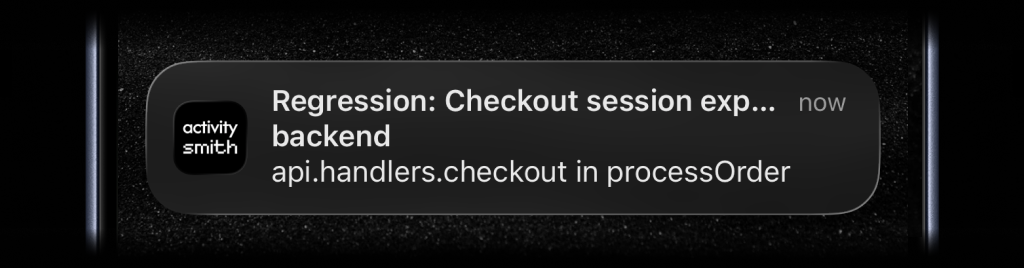
See the error and project, then open the issue in Sentry.
Sentry already collects your application errors. Connect it to ActivitySmith to get a Push Notification for each new issue group. There is no notification code to add to your application.
Use the Sentry integration with the New issue alerts preset. Start by sending notifications to all your paired devices. You can narrow the recipients and add other events after your first test.
Before you start
ActivitySmith account and paired iPhone or iPad
Install the ActivitySmith iOS app, pair your device, and allow notifications in iOS Settings. Create the webhook in the same account you used to pair the device.
A Sentry project and permission to create an Internal Integration
Your project should already report errors to Sentry. Ask an organization administrator for help if you cannot create or edit Custom Integrations.
Set up Sentry Push Notifications
Connect Sentry to ActivitySmith
Create an ActivitySmith webhook, then add its URL to a Sentry Internal Integration.
Step 1
Choose the New issue alerts preset
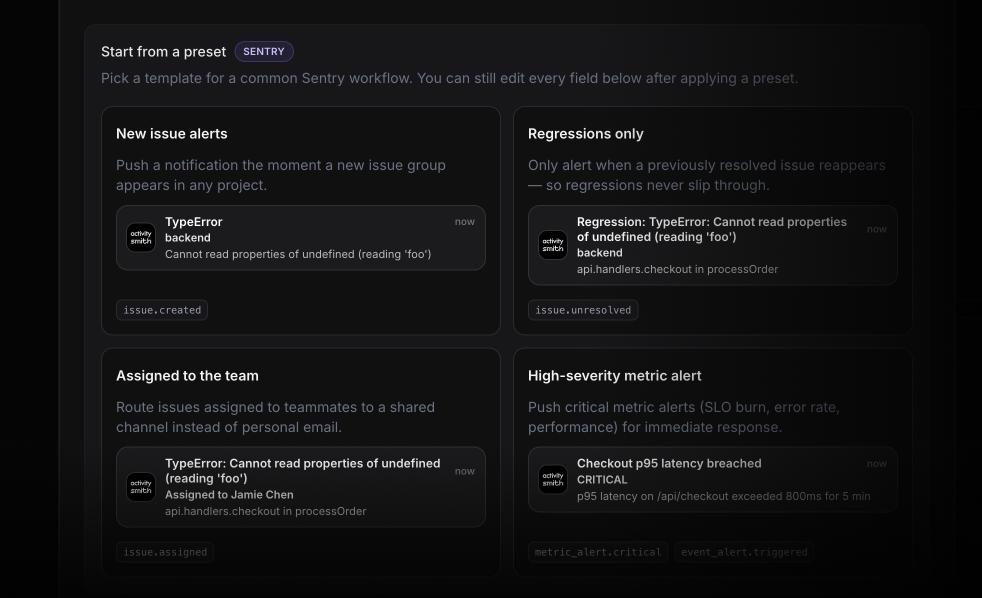
Open ActivitySmith Webhooks, create a webhook, and choose Sentry. Apply New issue alerts, which selects issue.created. Keep Push Notifications enabled. Leave Channels unselected to notify all your paired devices. Save the webhook and copy its URL.
Step 2
Create a Sentry Internal Integration
In Sentry organization Settings, open Custom Integrations and create an Internal Integration. Name it ActivitySmith alerts. Paste the generated ActivitySmith URL into Webhook URL. Enable the Issues webhook subscription and its required read permission. Save the integration. New issue notifications work without an alert rule.
Step 3
Add the Sentry Client Secret
Copy the Client Secret from that Sentry Internal Integration. Edit your ActivitySmith webhook, paste it into Sentry Client Secret, and save. ActivitySmith uses this secret to verify that requests came from Sentry. A Sentry API token will not work in this field.
Step 4
Review the notification fields
The preset maps the title to data.issue.title, subtitle to data.issue.project.slug, and message to data.issue.culprit. The destination and Open in Sentry action use {data.issue.web_url}. Use these defaults for your first test. If you switch event types, check the payload and update the fields to match.
Test delivery to your iPhone
Send a sample to check the notification, then create a Sentry issue to test the connection.
Step 1
Send the sample from ActivitySmith
In the webhook editor, use Test webhook with the Sentry new-issue sample. Check the title, project, and message on your phone. The sample links to an example Sentry URL, so use a real event to test opening an issue in your organization.
Step 2
Create a new issue in a test project
Send a harmless test error through your existing Sentry SDK in a test environment. Check that Sentry creates a new issue group for it. Repeating an error in an existing group will not trigger the New issue alerts preset.
Step 3
Open the real issue from your phone
Check the project and issue in the notification. Tap it or choose Open in Sentry. Sign in if prompted, and check that you land on the test issue. You need permission to view that issue in Sentry.
Add other Sentry events
Once new issue notifications work, you can add reopened issues, assignments, or alerts from Sentry rules.
Step 1
Follow reopened issues or assignments
Regressions only selects issue.unresolved, which can include other unresolved state changes, such as escalations. Assigned to the team selects issue.assigned. ActivitySmith sends assignment notifications according to your delivery settings. It does not look up the assignee to choose a recipient.
Step 2
Send notifications when an alert rule fires
Choose your Internal Integration as the alert action in Sentry. In ActivitySmith, select the matching event, such as event_alert.triggered. Check an actual payload before mapping the title, message, and URL. The Issues subscription sends events even when no alert rule fires. Turn it off if you only want rule-triggered notifications.
What you should see
- New issue groups generate Push Notifications on your paired iOS devices.
- Each notification shows the issue title, project, and culprit.
- Tap the notification to open the issue in Sentry.
Get your first Sentry issue notification
Start with the New issue alerts preset and send a test issue to your paired iPhone.